Step 1
Compatible Devices!
DEVICES TO USE FOR TOON TV LIVE
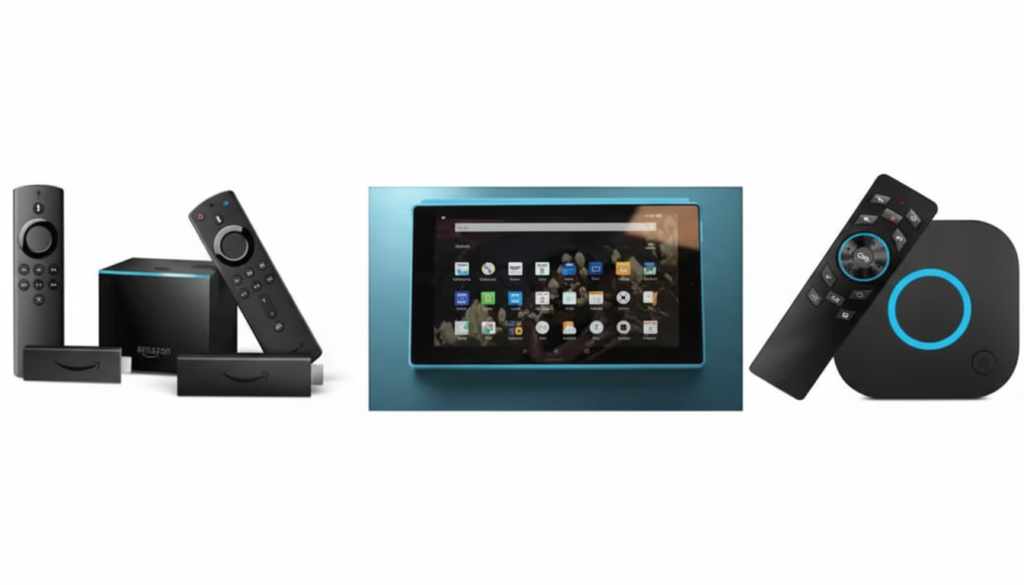
- APPLE iOS https://webplayer.toonboxlive.com/login
- AMAZON HD FIRESTICK https://aftv.news/8452455
- ONN HD FIRESTICK https://aftv.news/8452455
- SET TOP BOX https://aftv.news/2659463
- ANDROID SMARTPHONES https://aftv.news/1428555
- TABLETS https://aftv.news/1428555
- SMART TV (WITH DOWNLOADER APP) https://aftv.news/8452455
Step 2
Sign~in Required
Sign Into Your Preferred Device Login
Once you have your device plugged in, you will need to login to your Amazon account and or Google TV account depending on your device preference.
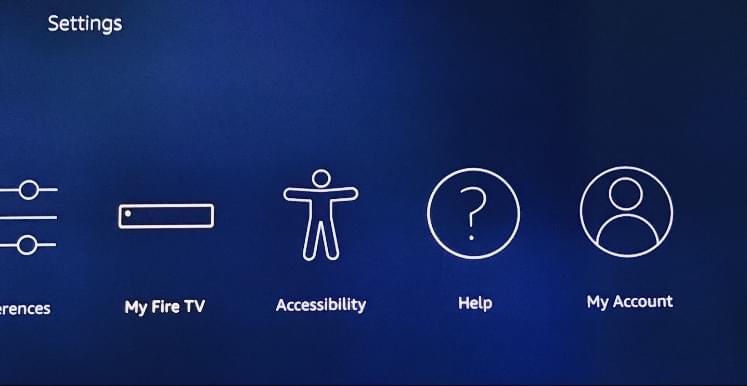
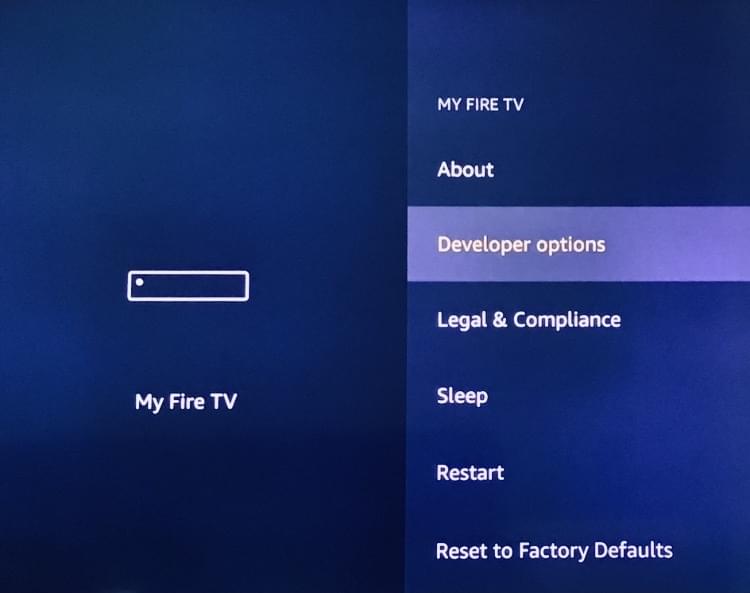
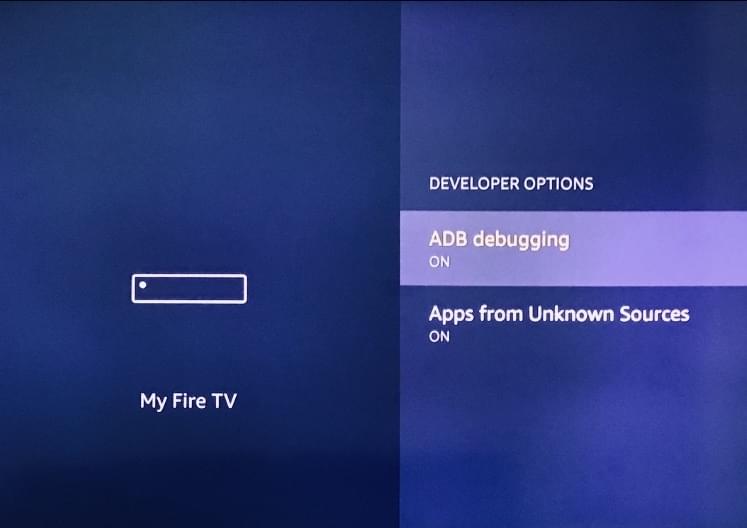
Be sure to Enable Developer Options: IMAGES BELOW TO GUIDE USERS BE SURE TO CHECK ALL OPTIONS
Step 3
Go To Downloader App
Go To Downloader or Aftv.news

Under Apps You Will Type "Downloader " or "Aftv.news" An Orange Icon Will Appear As Shown Above.
Hit The Install Button.
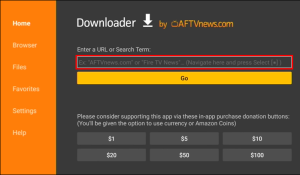
Enter URL https://aftv.news/8452455
Install & Enjoy !
BE SURE TO CLEAR CACHE IN DEVICE SETTINGS FOR UPDATES AFTER DOWNLOAD
ALL DEVICES MUST HAVE ENOUGH STORAGE SPACE
Step 4
Step 5
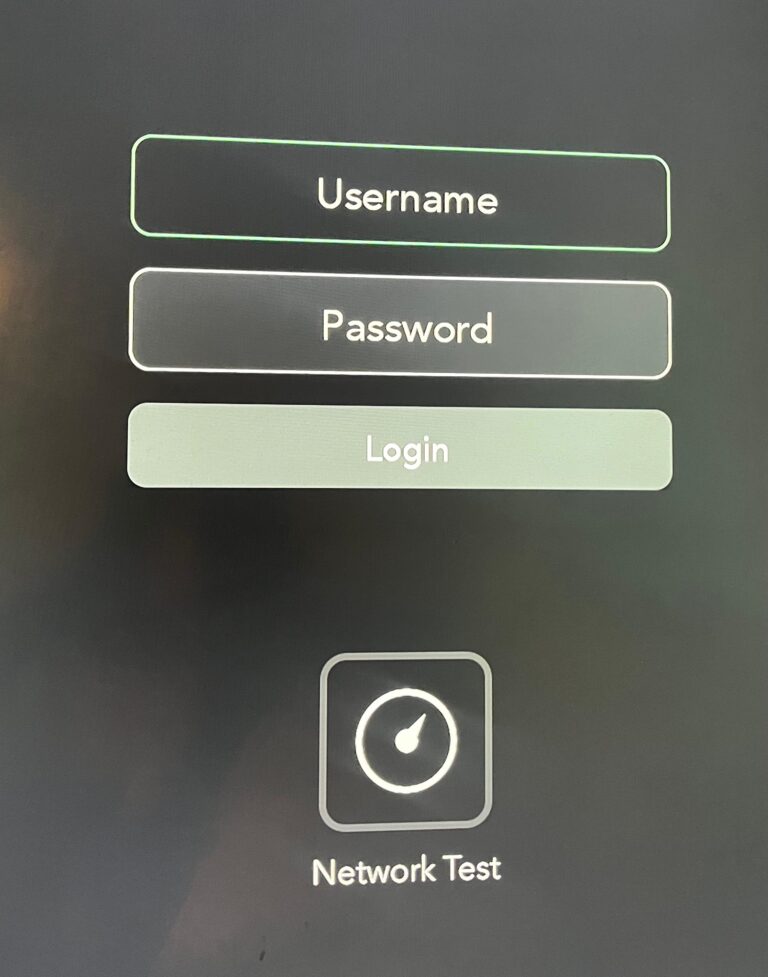
Secured Login
Your username and password is (lower case) letter sensitive. Please be mindful when logging into your service account
Optional
March 30
Sub Label
Add Title Here